 evomedia.net
Appearance
Managing your team
Workspace admins add and remove people, set what each person can do in each app, and decide who else can administer the workspace — all from inside the app, on the Members page.
Opening Members
- Click Members in the app header. (You'll only see it if you're a workspace admin.)
- Confirm your password. Member management sits behind a short security window — the same idea as GitHub's "sudo mode" — so a walk-up to an unlocked laptop can't change who has access. It stays unlocked for 15 minutes.
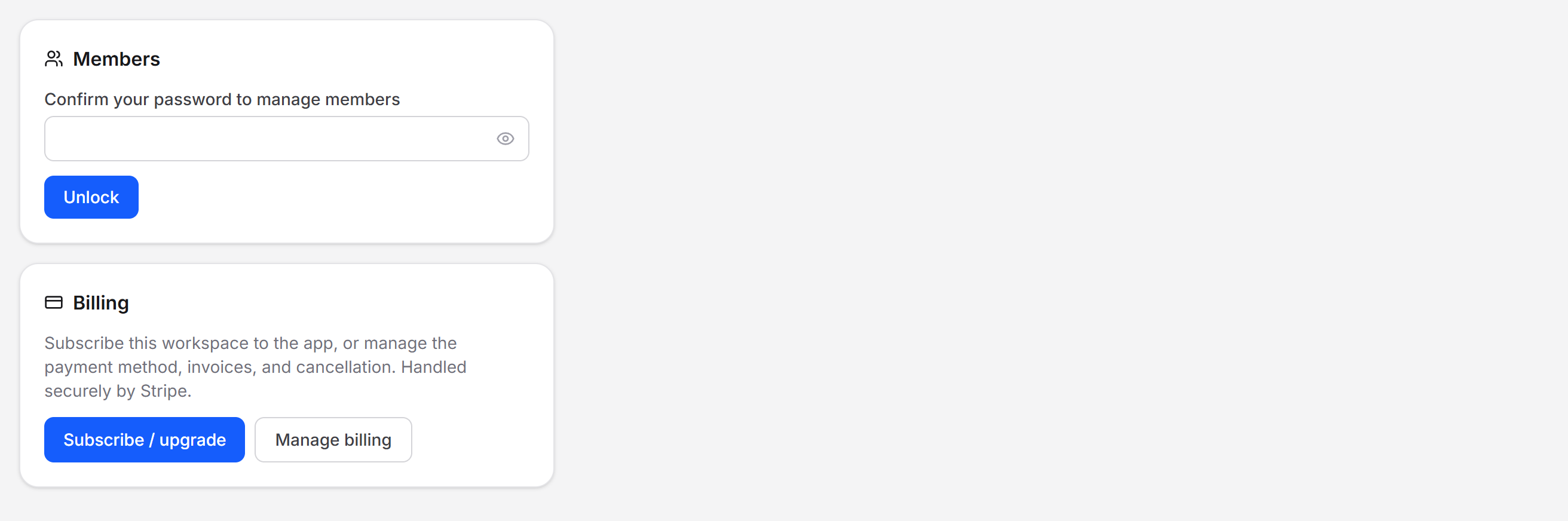
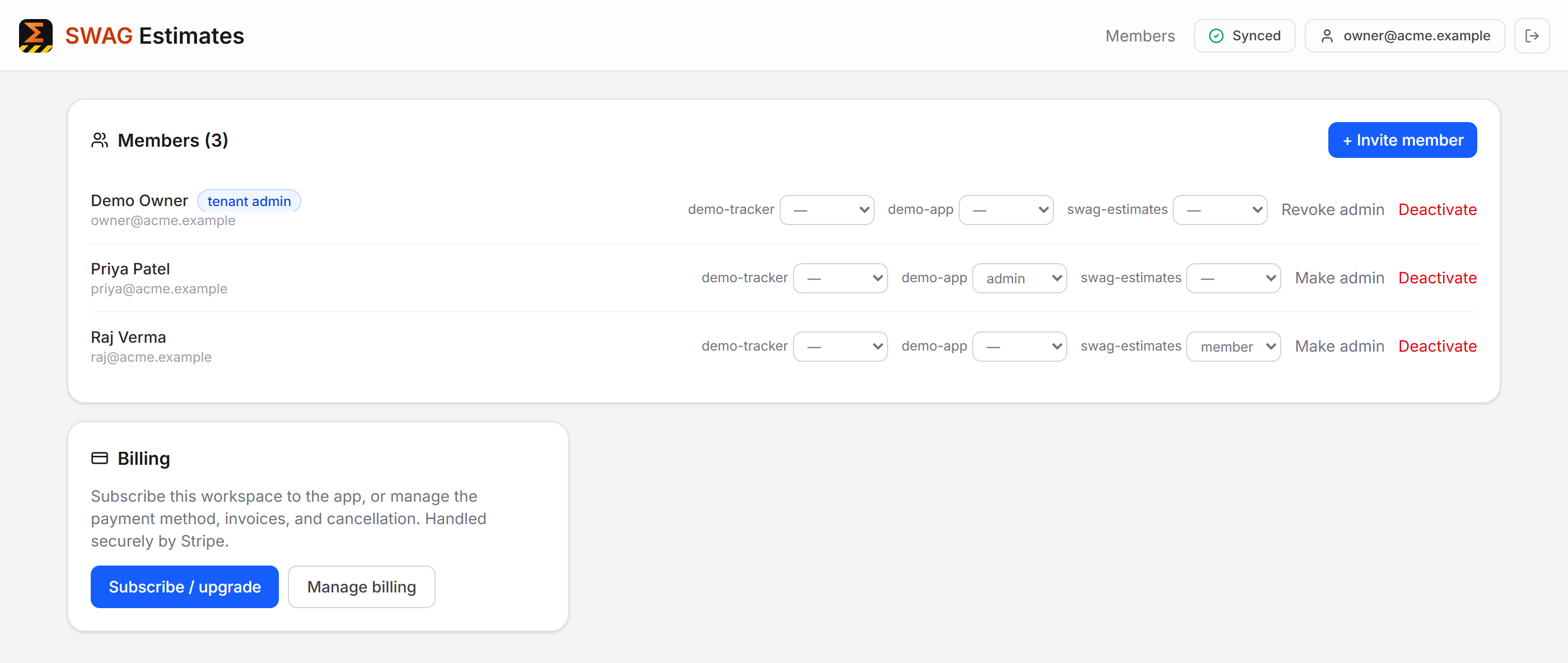
Once unlocked you see everyone in the workspace, their roles in each app, and the actions available to you:
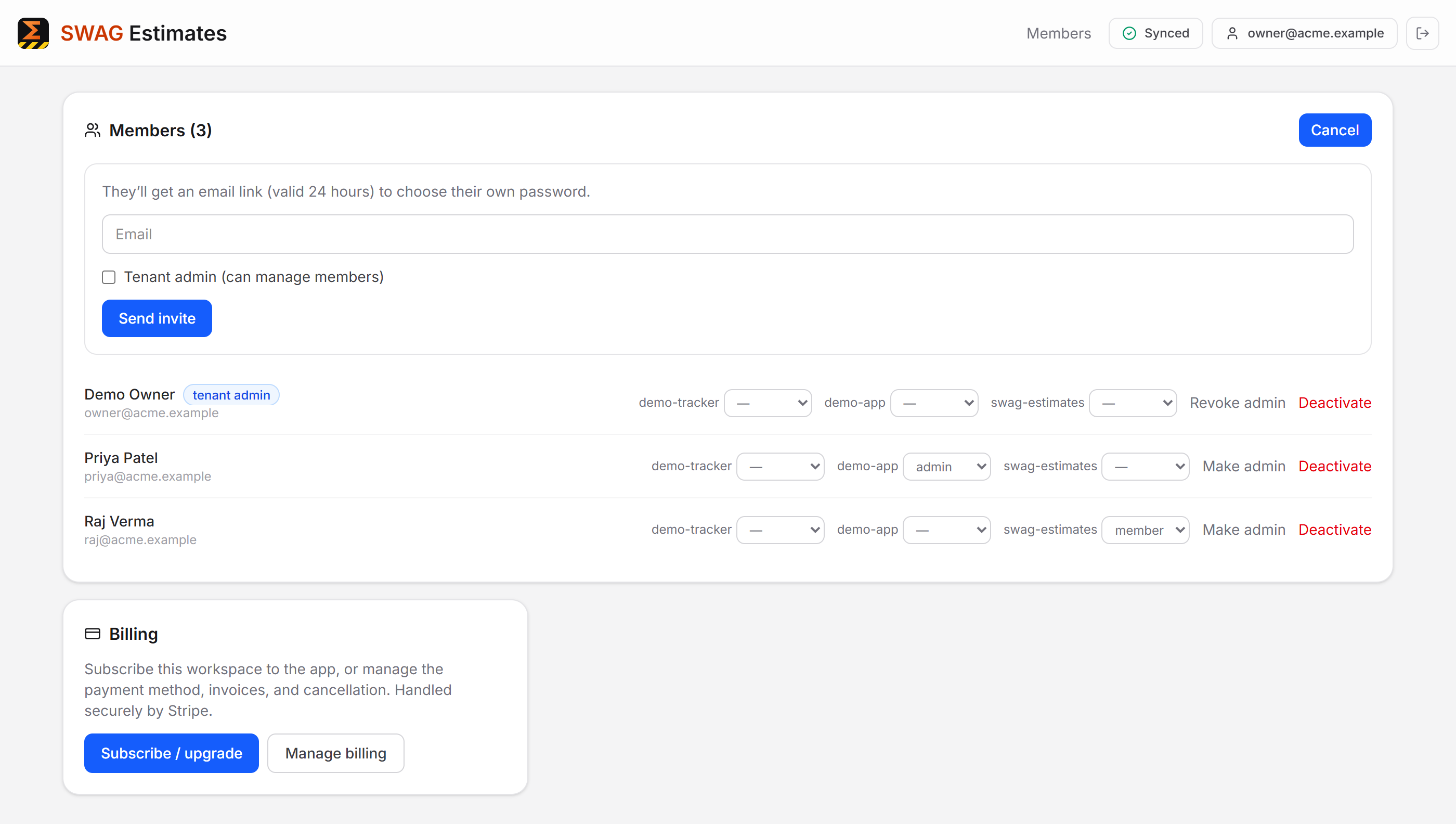
Inviting someone
- Click + Invite member.
- Enter their email address.
- Tick Tenant admin if they should also be able to manage members and billing.
- Click Send invite.
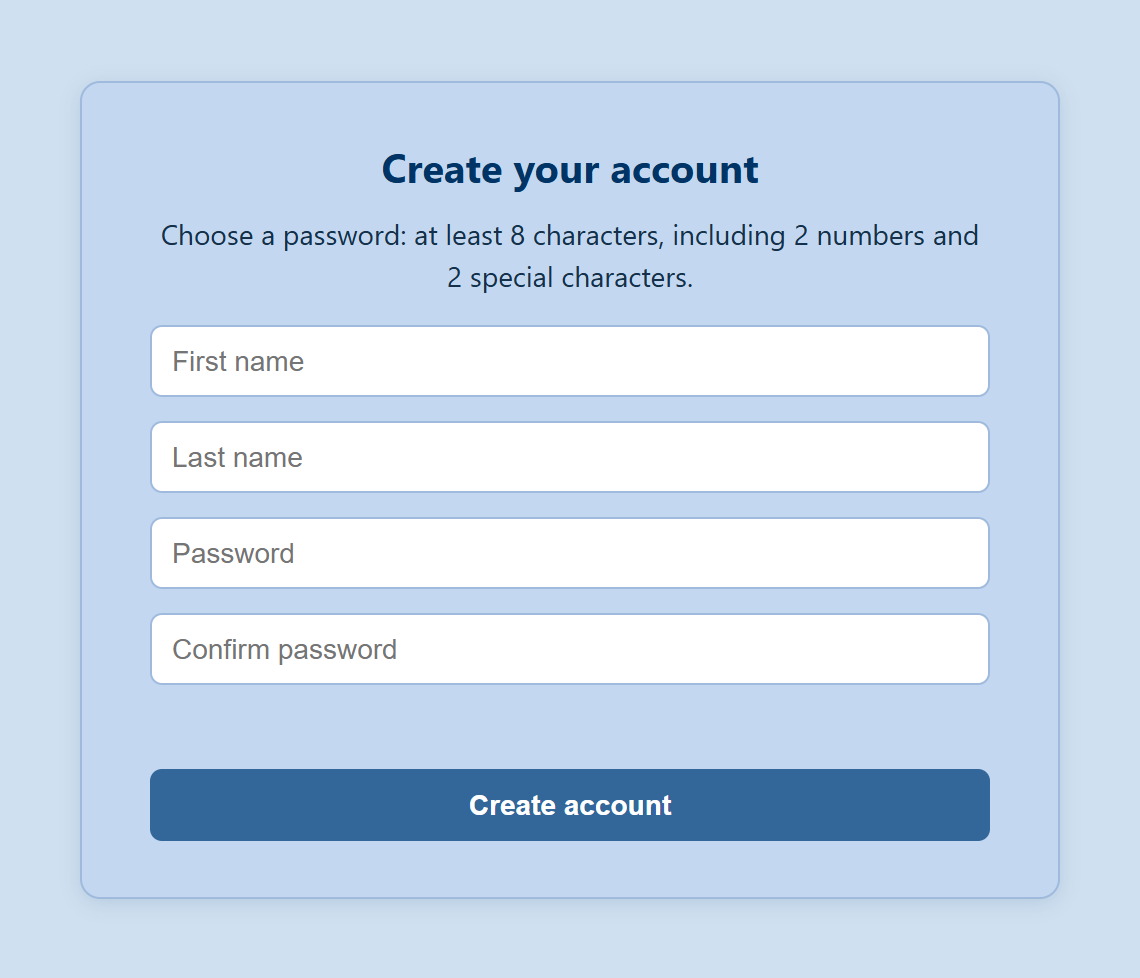
They receive an email — "<your name> invited you to join <workspace>" — with a link that is valid for 24 hours and works once. They click it, choose their own name and password, and they're in:
No temporary passwords, ever
Because they set their own password through the emailed link, nobody has to send a password over chat or email — and clicking that link also proves their mailbox, so they never need a separate verification step.
Pending invites
Invites that haven't been accepted appear in a Pending invites list with their expiry:
- Re-send — sends a fresh link. The previously emailed link stops working immediately, which is also how you handle an expired invite.
- Revoke — cancels the invitation. The emailed link stops working.
Inviting an address that's already a member is refused — edit that member instead.
Roles
Each member has one role per app, chosen from that app's roles. Use the dropdown next to the member's name; the change saves immediately.
- The list only offers apps your workspace actually has access to.
- Roles decide what someone can do inside an app. Being a workspace admin is separate: it controls who can manage the workspace itself.
Admins, deactivating, and restoring
- Make admin / Revoke admin — grants or removes workspace administration (members, invites, billing).
- Deactivate — the person can no longer sign in. Nothing is deleted, and their work stays intact.
- Restore — brings a deactivated member back with their previous roles.
You can't lock yourself out
You can't remove your own admin role or deactivate your own account. If you're leaving, grant admin to someone else first — and make sure a workspace always has at least one active admin.