 evomedia.net
Appearance
Signing up
How to create your company's workspace and sign in for the first time. Takes a couple of minutes, and you don't need a card.
1. Create your workspace
- Open the app's signup page — usually "Create your company workspace" on the sign-in screen.
- Enter your company name, your email, and a password.
- If you were sent an invite link to sign up, start from that link — it carries the token that authorizes your signup.
- Submit. You'll see a confirmation asking you to check your inbox.
Password requirements: at least 12 characters. Longer is stronger — a phrase of a few words works well, and spaces are allowed. There are no special-character requirements; strength comes from length, not from mixing in symbols. Common passwords and runs like abcde or 12345 are rejected. (NIST/OWASP Standard)
What you get: a workspace named after your company, your account as its first workspace admin, and a 14-day trial of the app you signed up through.
2. Verify your email
You can't sign in until your email is verified
This is deliberate — it proves the mailbox belongs to you before the account becomes usable. If you try to sign in first, the app says "Email not verified" and offers to send the email again.
Look for "Verify your email address" in your inbox (check spam if it isn't there).
Click the link. A page confirms "Email verified."
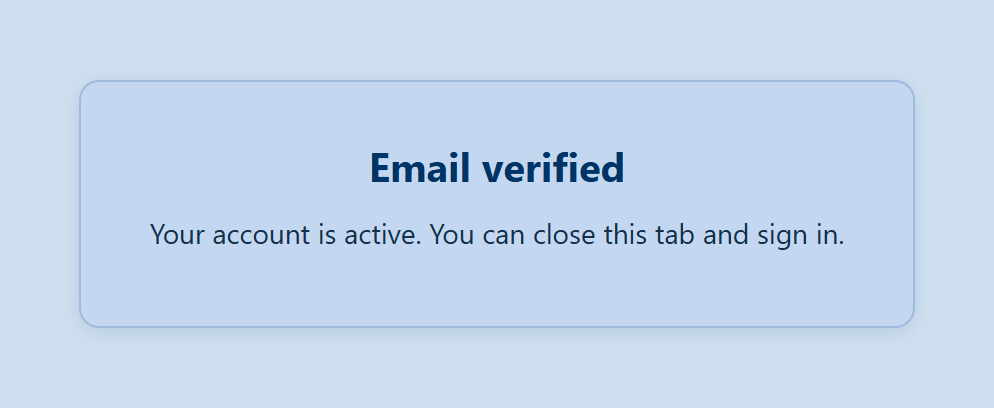
Links are valid for 24 hours. Need a fresh one? Use the re-send button on the signup confirmation or on the sign-in error.
3. Sign in
Return to the app's sign-in page and enter your email and password. If the form asks for a workspace, use the workspace name shown when you signed up.
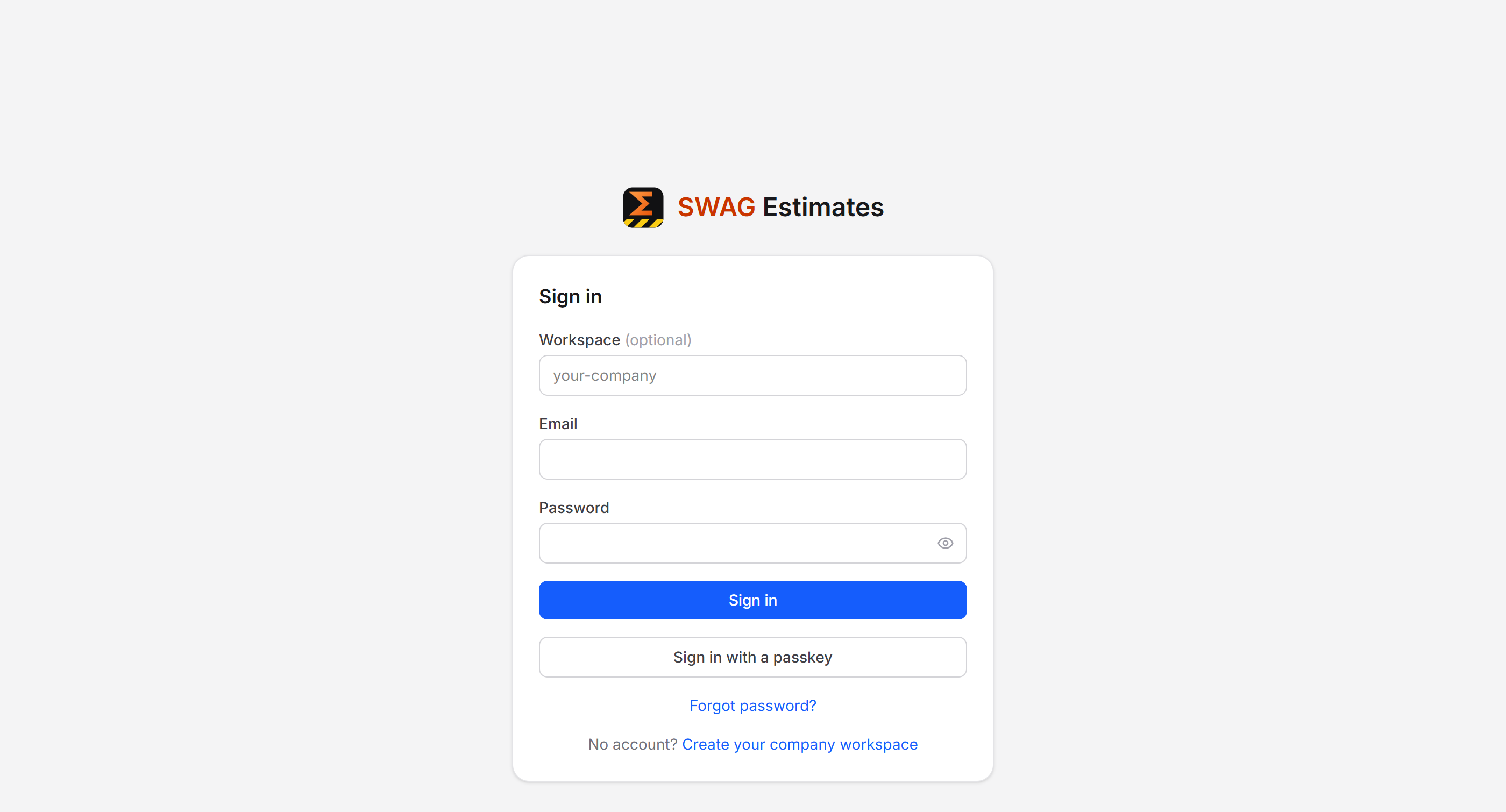
You're in. Because you created the workspace, you're already a workspace admin — you'll see a Members link in the app header.
4. Recommended next steps
- Add a passkey so you can sign in with Windows Hello, Touch ID, or a security key instead of typing a password — see Your account.
- Invite your team — see Managing your team.
- Check your trial end date and subscribe when you're ready — see Trial and billing.
If something goes wrong
| What you see | What to do |
|---|---|
| "Email not verified" at sign-in | Click re-send verification email, then use the new link |
| The verification link says it's expired | Links last 24 hours — request a new one from the sign-in screen |
| "That workspace name is already taken" | Choose a different workspace name; company names often repeat |
| "Too many attempts" | A short cool-off after repeated tries; wait a few minutes |
| No email arrives at all | Check spam, confirm the address you typed, then contact your administrator |