 evomedia.net
Appearance
Focus
How to get a star to be a point rather than a blob, without touching the camera. Two ways to look, one way to move the lens, and the camera's own focus modes as a row of buttons.
Press the picture to focus there
With the live picture on, press it where you want the camera to focus. The camera moves its focus point there and focuses, and the page says where — Focused at the top left — or says that it could not. Nothing is photographed by pressing the picture: it is the largest target on the page, and what it does had better be harmless.
Check focus
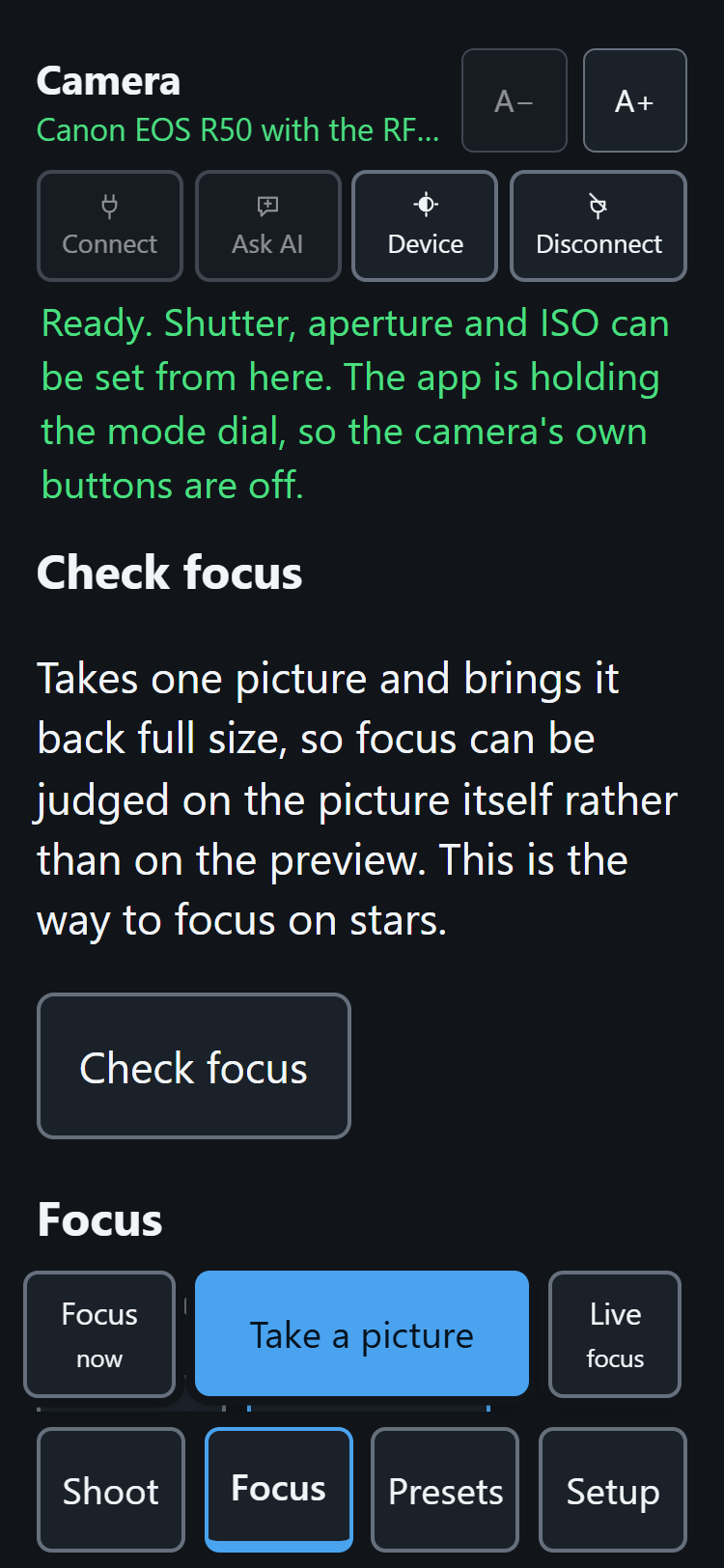
Check focus takes one picture with autofocus off, brings it back from the card, and shows you the whole frame. Press the picture where you want to look — on the star — and it opens there at full size, one picture pixel to one screen pixel. That is every pixel the sensor recorded, which the live view (a small preview) does not have.
Then: adjust focus, press Check focus again, and the next picture arrives already magnified on the same spot. A camera on a tripod does not move and neither does the star, so every further check is one press.
| Control | What it does |
|---|---|
| Check focus | Takes one picture and brings it back |
| the picture | Press anywhere on it to look closely there |
| Up / Left / Right / Down | Move the view about a screen's width |
| Whole picture | Back out to the whole frame |
| Full size | One picture pixel per screen pixel |
| Twice full size | Larger again |
| Check focus again | The next picture, same magnification, same spot |
| Put the picture away | Takes it off the page; the spot is remembered |
Pixels are shown as they are, never smoothed: smoothing is exactly what makes an out-of-focus star look acceptable.
The camera has to be recording a JPEG
If the camera is only recording RAW, or HDR PQ is on (which makes the second slot HEIF rather than JPEG), the page says so and offers Record a JPEG as well. Pressing it adds a JPEG alongside whatever the camera already records; it never takes a format away, and it never changes this on its own.
Magnify the live picture
A lighter way to look: Magnify the live picture, on the viewfinder, with the same direction pad, Full size, Twice full size and Whole view. It enlarges the frames already arriving and switches the camera to its larger feed the moment you magnify, so up to about two and a half times there is real detail to be had. Past that it is the same pixels drawn bigger, which is why nothing here says 5×. Use it to get close; use Check focus for the answer.
Focus peaking and the score
Show focus peaking marks the sharpest edges in green over the live picture, and shows a score — a number that rises as focus improves, falls once you have gone past, and remembers the sharpest it has seen:
Focus 37.2 sharpest 41.8That reading says you overshot: go back. The number sits over the picture, bottom left, so it is still on screen when you scroll down to the focus buttons. Sensitivity — More / Normal / Less — is how hard an edge has to be before it is marked; More also catches sensor noise on a dark sky.
The score is relative: it means a great deal while you turn focus and nothing across a change of scene or exposure. When the view is magnified, only the visible part is measured.
Moving the focus from the phone
Closer and Further away, with a step size of Small, Medium or Large above them — the same shape as the exposure dials, so the buttons land in the same place.
The camera has to be off manual focus
Canon's focus drive does not operate with the camera in manual focus, and a camera in manual focus refuses to be switched out of it over the API. So these buttons are not shown at all in that state; what appears instead is where to change it — the camera's own focus menu, or the lens's AF/MF switch where the lens has one (the RF-S 18-45mm kit lens does not).
Focus mode, AF area and tracking
Beneath the drive buttons, the camera's own choices as rows of buttons rather than menus: Focus mode (One shot, Servo, Automatic), AF area (Spot, One point, widened, zones, Whole frame) and Subject tracking (On / Off). Only values the camera says it will accept are shown, and a setting with a single option is not shown at all. What the camera tracks — people, animals, vehicles — is set in the camera's own menus and is not reachable from here.
The level and the histogram
Both live on Setup because they are switched on once while the tripod goes up. Their readings ride on the picture, in words, on every section.