 evomedia.net
Appearance
Setup
The rigging: things you set once while the tripod goes up and then leave alone. Your account also lives here — see Signing in and syncing presets.
Restarting and updating
The section opens on these two, because they are the ones you may need when nothing else is working, and the further down a page something is the further you have to travel to reach it — a distance that grows every time you press A+.
- Restart the bridge re-runs the code that is already here.
- Update and restart takes the latest release first, then restarts.
Neither stops anything until the new code has been proved to load in a separate process. The page says it is restarting and comes back on its own when the replacement answers. Nothing on the camera is changed by a restart. Signed in before it, signed in after it.
Never shown on the public demonstration: there it would be a button that stops the site for everybody.
Finding a different camera
Taking the camera back after it has been switched off and on, or its Wi-Fi restarted, is Connect in the header bar — on every section, so you do not have to come here for it.
Find a different camera is on this section, and is the slower, deliberate thing its name says: a full sweep of the network for another body. Under it, Or type the address the camera is showing is for the rare day the search finds nothing; see Getting connected.
Show what the camera sees
Turns the live picture on and off. On, it sits at the top of every section with its own Smaller / Bigger.
Image quality
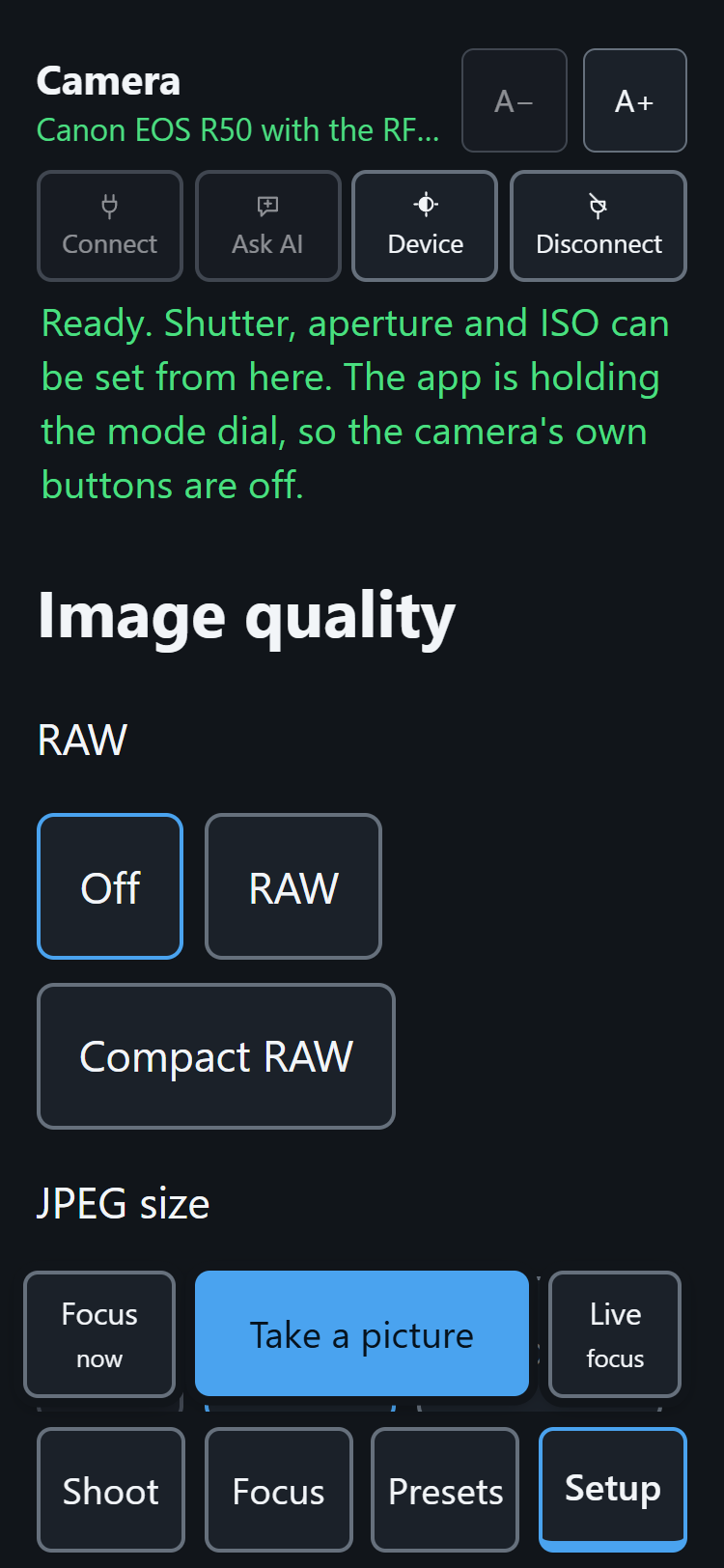
What each picture writes, as three rows of buttons instead of Canon's one long list:
| Row | Choices |
|---|---|
| RAW | Off, RAW, Compact RAW |
| JPEG size | Off, Large, Medium, Small, Smallest |
| Detail | Fine, Normal (shown only where the size has the choice) |
Every list comes from what the camera says it will accept. Changing the size keeps the detail level. The sentence underneath says what one press will produce — Each picture writes a compact RAW and a large fine JPEG — and the one combination the camera refuses (both slots off) is prevented rather than failing: the button that would cause it is disabled and the page says which press to make first.
With HDR PQ on, the second slot is HEIF rather than JPEG, and the page says so — it is the thing most likely to make Check focus look broken.
The level and the histogram
Show the level (L) asks the camera which way it is leaning and draws it as an aircraft's attitude indicator — sky, ground, a fixed pair of wings that are the camera. Level is when the wings sit on the horizon; they turn green when they do. Beside it, the words: Level. — Right side 2° low. — Level, tilted up 5°. The words can be hidden once the ball can be read; they are still announced.
Show the histogram (H) says whether the picture is exposed: Well exposed. — Dark, about 2 stops under. — Clipping 20% of the frame. It never calls a dark frame wrong — a moonless sky belongs at the bottom of the scale.
Either one starts the live picture if it is not already running, and says so. Both read from the picture twice a second and speak only when the words change. A reading that stops arriving (the camera's own menu open, say) is kept for a moment, then the words say how long it has been rather than showing a confident number from minutes ago.
Dark or light
In the header bar now, not on this section — one button in the top right of every page, cycling Follow the device (the default) → Dark → Light. The word on it is the one you are on. A phone on a schedule turns dark at sunset, which is exactly when someone photographing a sunset may want the opposite — so it is a choice, not a guess.
Where the menu bar sits
The four tabs at the bottom (the default) or the top of the page.
The keys
The full list of single keys, one per control. See Keys.
Your account
Sign in, create an account, sign out, and Sync presets — see Signing in and syncing presets.