 evomedia.net
Appearance
A tour of the page
One page, four sections, and nothing that moves. Everything on it is a real button with words in it; every press is answered in words; every mistake can be undone with the browser's own Back.
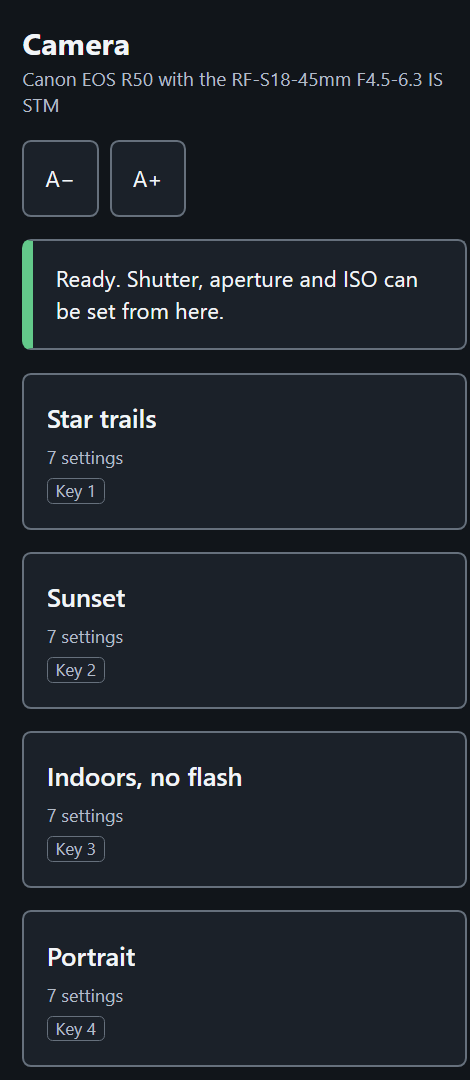
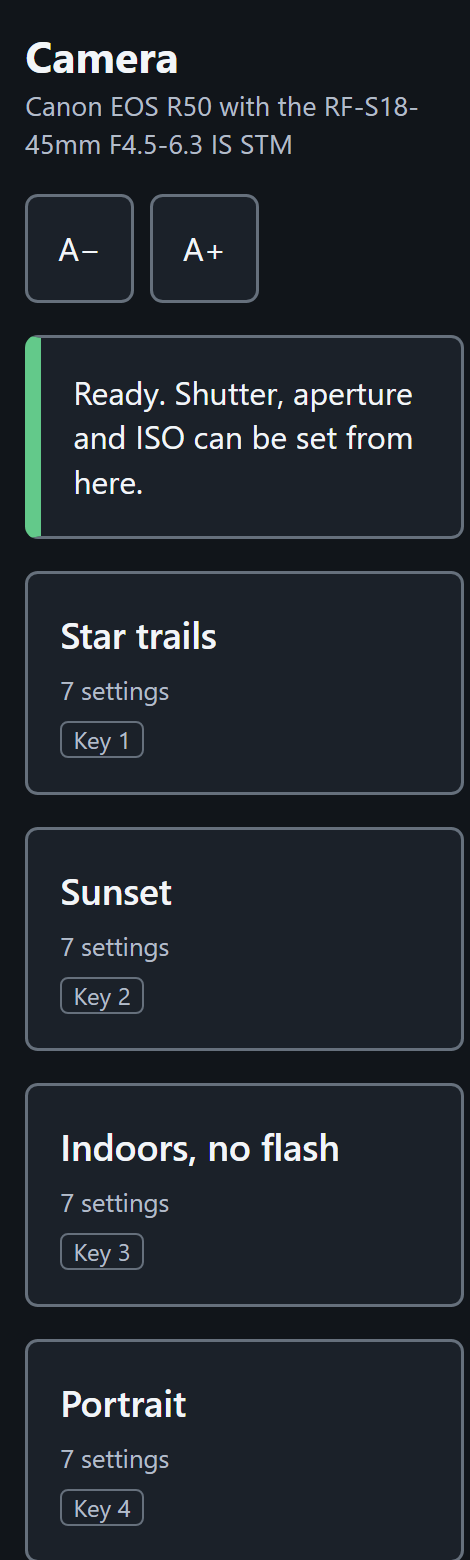
The header
The top of the page names the camera and its lens, and says in one line whether it is ready — Ready. Shutter, aperture and ISO can be set from here. The app is holding the mode dial, so the camera's own buttons are off. When something is wrong the line becomes a panel that says what.
A− / A+ at the right make everything bigger or smaller together — the text, the buttons and the gaps between them. One number scales the whole page.
There are five sizes: the one the page opens at, and four bigger. The button at either end looks spent when there is nowhere left to go. The page starts deliberately large, so the ladder is counted from where it opens rather than from nothing, and it never goes below that opening size — a control whose whole job is to make the page readable has no business making it less readable, and every size it offers is one the layout has to survive.
The two are the one pair on the page that never changes size and never moves. Everything else grows when you press A+; if these did too, the button you had just hit would be somewhere else by the time you went to hit it again. Nothing is ever drawn above them, for the same reason.
The four buttons in the corner
Beside them, in the top right and on every section, are the four things you reach for from anywhere. Each has an icon and a word — no icon on this page ever stands alone.
| Button | What it does |
|---|---|
| Connect | Looks for the camera and takes it. Greyed out while one is already connected |
| Ask AI | Goes straight to the question box on Presets — see Ask AI |
| Dark / Light / Follow the device | Appearance. The word is the one you are on now; pressing moves to the next |
| Disconnect | Hands the camera back — auto power off restored, the mode dial released — without stopping the app |
All four are always drawn. The one that does not apply is greyed out rather than removed, because a button that disappears moves every button beside it.
On a phone they sit on their own full-width row under the camera's name.
The picture
When the live picture is on (Show what the camera sees), it sits at the top and stays there while the rest of the page scrolls underneath. It has its own Smaller / Bigger, separate from what the camera is asked to send, so you can shrink it to reach the controls without making it coarser.
Pressing the picture focuses on that spot — see Focus.
Four sections
A bar of four tabs — at the bottom of the page by default, or at the top if you prefer (it is a Setup choice):
| Section | What is on it |
|---|---|
| Shoot | The three dials — shutter speed, aperture, ISO — with their step size, the drive mode, and the first few presets |
| Focus | Check focus, the live magnifier, focus peaking and the score, focus drive, and the focus modes |
| Presets | The whole grid, hearts, ordering, the editor, and Ask AI |
| Setup | Restarting and updating the app, finding a different camera, image quality, the level and the histogram, where the bar sits, your account, and the key list |
Moving between sections is announced ("Shoot.") for anybody who cannot see which tab is bold, and takes no room on the screen.
The three buttons that float
Take a picture is always in the middle of the bottom of the page, in the page's own blue, with Focus now on its left and Live focus on its right. They float over the page rather than sitting on a strip across it, so nothing behind them is cut off, and the shutter stays in the exact middle whatever sits beside it.
What happened, in words
Every press is answered in a sentence — Saved Sunset, with 7 settings. — in a live region, so a screen reader says it and nobody has to look to know. The sentence stays until the next press.
One key at a time
Every control is also a single key — never a chord. T takes a picture, 1 to 9 press the presets, L shows the level, + and − change the size. The full list is on Setup, and in Keys.
Nothing moves
No animation, no hover-only control, no layout that reflows under a pointer being aimed at it. A button that appears only while something is hovering is a button a switch scanner can never reach, so there are none.
With no scripting at all
Every control is a plain form: the page works with JavaScript switched off, in any browser, and in a screen reader. With scripting on, a press updates the page in place instead of reloading it, and the live picture is not interrupted.